

Welcome to our guide on downloading and installing Procreate brushes! Procreate is a powerful and flexible digital art app for the iPad that lets artists make beautiful paintings, illustrations, and designs. One of the best things about Procreate is that you can install your own brushes, which can speed up your work and give you more creative options. In this blog, we will be showing you step-by-step how to download and install brushes in Procreate.
Step 1: Download the Brush Files
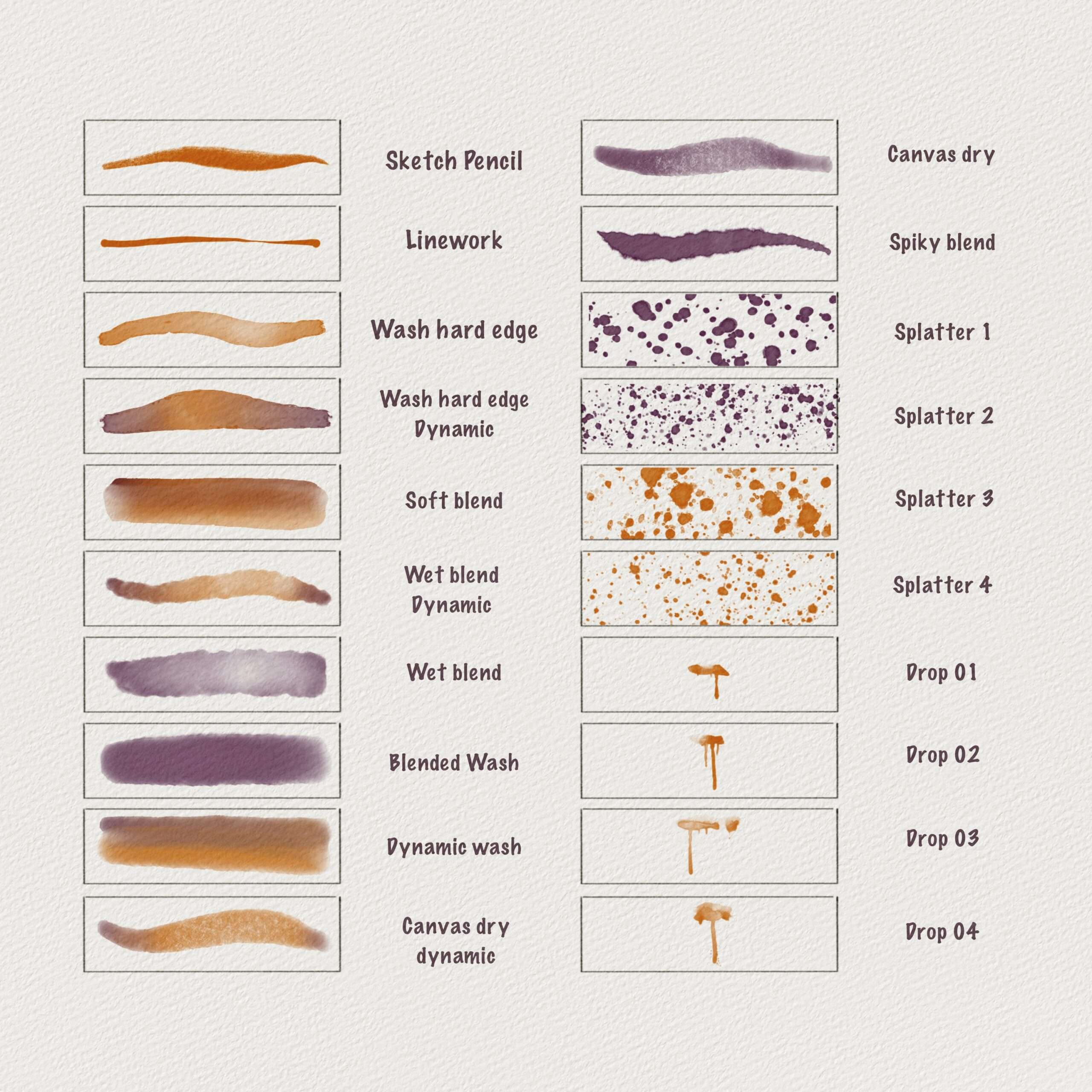
The first step in downloading and installing Procreate brushes is to find the brush files that you want to install. You can choose from our PJ Sketchbook procreate brushes to start your artwork. We have digital watercolor brushes for beginner, intermediate, and professional artists who want to try a new way to create digital illustrations.
Step 2: Import the Brushes into Procreate
Once you have downloaded the brush files, you will need to import them into Procreate. This can be done by using either the Dropbox app or the iTunes file sharing feature.
- To use Dropbox:
Launch the Dropbox app and log in to your account. Locate the brush files that you downloaded and tap on them to select them. Tap on the “Export” button and select “Open in Procreate”.
- To use iTunes file sharing:
Connect your iPad to your computer and launch iTunes. Select your iPad from the Devices list and click on the “Apps” tab. Scroll down to the “File Sharing” section and select “Procreate”. Drag the brush files that you downloaded into the “Procreate Documents” section.
- From a download link from a website digital store:
Upon completing your purchase, you will be receiving an email which contains a download pdf link so you can import them to your procreate app directly.
Step 3: Install the Brushes in Procreate
Once you have imported the brush files into Procreate, you can install them by following these steps:
Launch Procreate and open the “Brushes” panel. Tap on the “Import” button and select the brush files that you imported or if you have directly opened it from a download link you it will now be automatically added to your brush library and ready to use. It is usually at the very top of your brush sets
Step 4: Use the Brushes in Your Artwork
You can now use the brushes that you installed in your Procreate projects by selecting them from the brush library. You can adjust the brush size, opacity, and other settings to get the perfect look for your artwork.
Installing Procreate brushes can greatly enhance your digital art workflow and provide you with new and exciting ways to create stunning artwork. Also, make sure that you have already your watercolor paper to achieve a realistic artwork. With the help of this guide, downloading and installing brushes in Procreate is a breeze. Happy creating!
Here is our full guide on how to install and download the brushes you purchased from our store